
Display products in 3D and augmented reality on your Shopify store
David Long
22nd June 2023
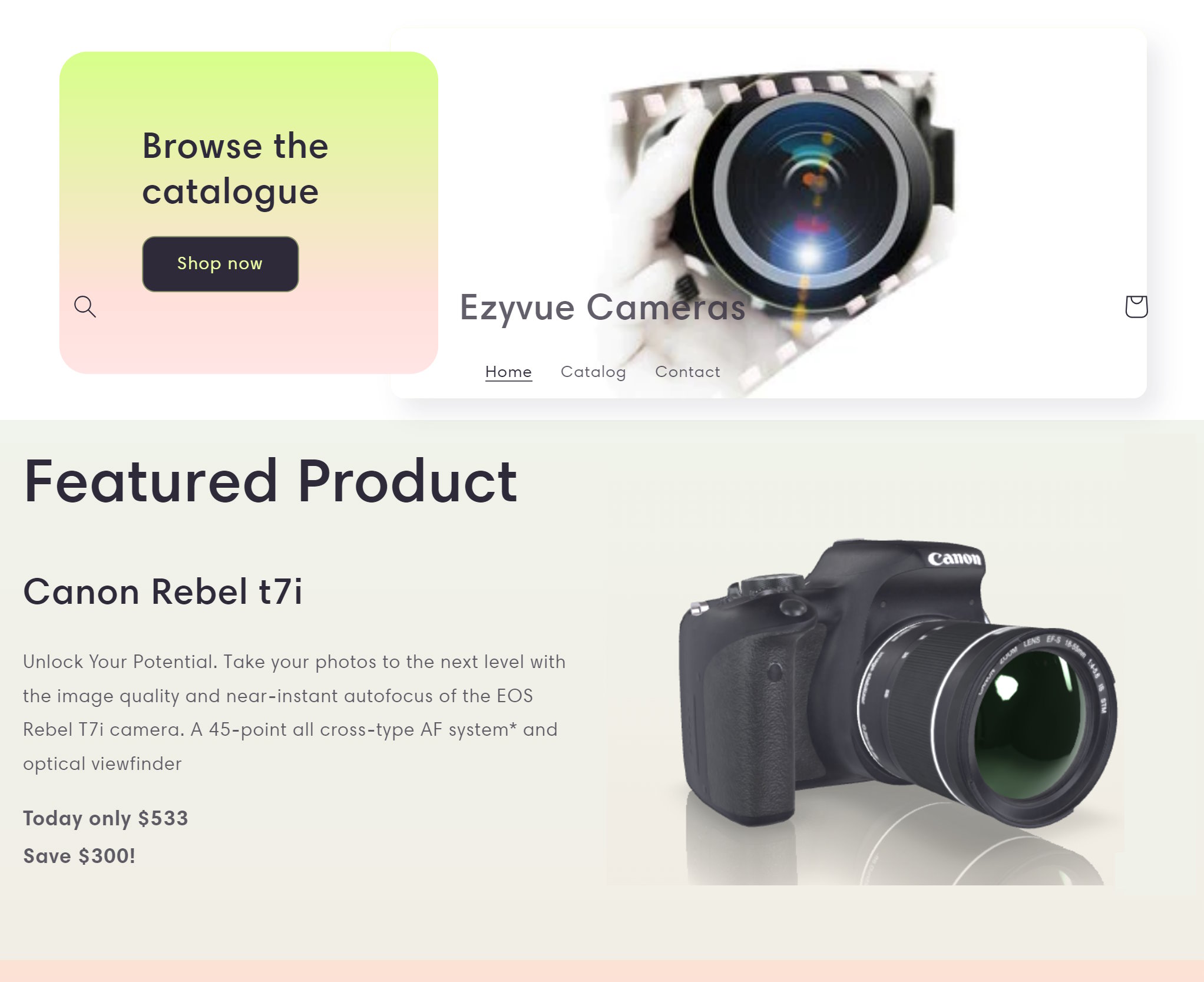
With the Ezyview viewer your customers can view and interact with a realistic 3D model of a product and see it in their home with augmented reality. Shopify is an all-in-one commerce platform that powers millions of businesses worldwide. Shopify allows you to upload and display 3D models of products in the same way as images but it lacks the more advanced features of the Ezyview viewer. In this guide, I'll demonstrate how to embed the Ezyview 3D product viewer and show a product in 3D and AR on your Shopify store.
Import a 3D model file into the editor
Open EzyView Studio, click on the cube and choose the delete command from the Edit menu to delete it. From the File menu choose Import File and select a file on your computer. If your model has additional files choose Import Folder and select the root folder. The model will be loaded and displayed in the main window.
Save and publish the project
From the File menu save the project so that you can come back to it later. On the File menu choose Publish Project. Two files will be downloaded to your computer, a project zip file containing project settings and a glTF 3D model file. Upload these files to your web server or file hosting service.
Embed the viewer on your Shopify store
For this guide, I've created a simple camera store using one of the free templates. I deleted the featured product section and changed some text and images.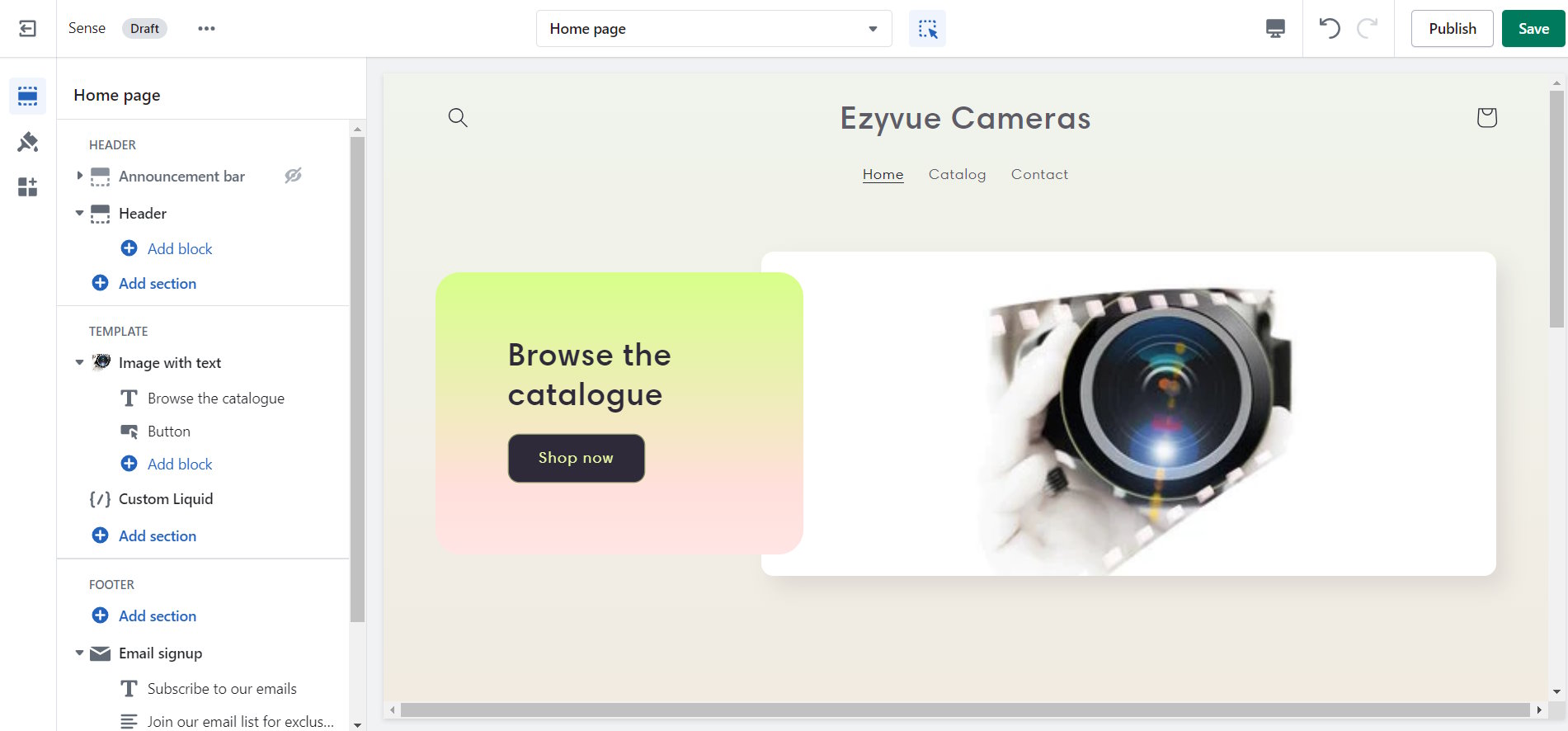
The 3D model will be displayed as a featured product in a section below the main page image section To do this move the mouse over the section, click the add section button and select Custom Liquid.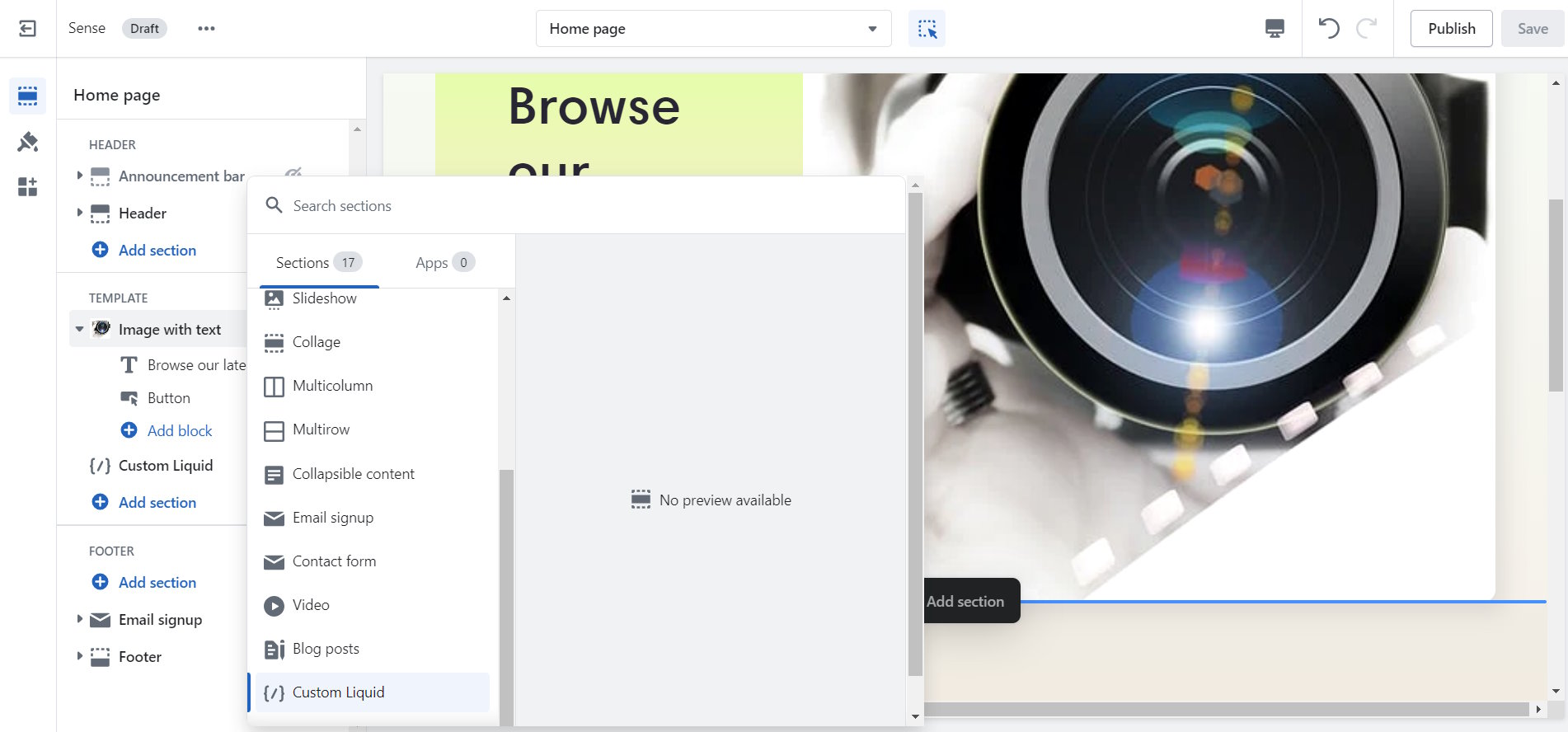
We will use the liquid section to create a two-column display with the product description on the left and the 3D viewer on the right. Copy the code below and paste in to the Custom Liquid textbox.
<style>
.row {
  display: flex;
}

.column {
  flex: 50%;
padding: 2%
}
</style>
<div class="row">
  <div class="column">
    <h1>Featured Product </h1>
    <h2>Canon Rebel t7i </h2>
    <p>Unlock Your Potential. Take your photos to the next level with the image quality and near-instant autofocus of the EOS Rebel T7i camera. A 45-point all cross-type AF system* and optical viewfinder</p>
<b style="font-size:large">Today only $533<br/>
Save $300!</b>
  </div>
  <div class="column">
    Paste embed code here...
  </div>
</div>
The end result should look something like the image below.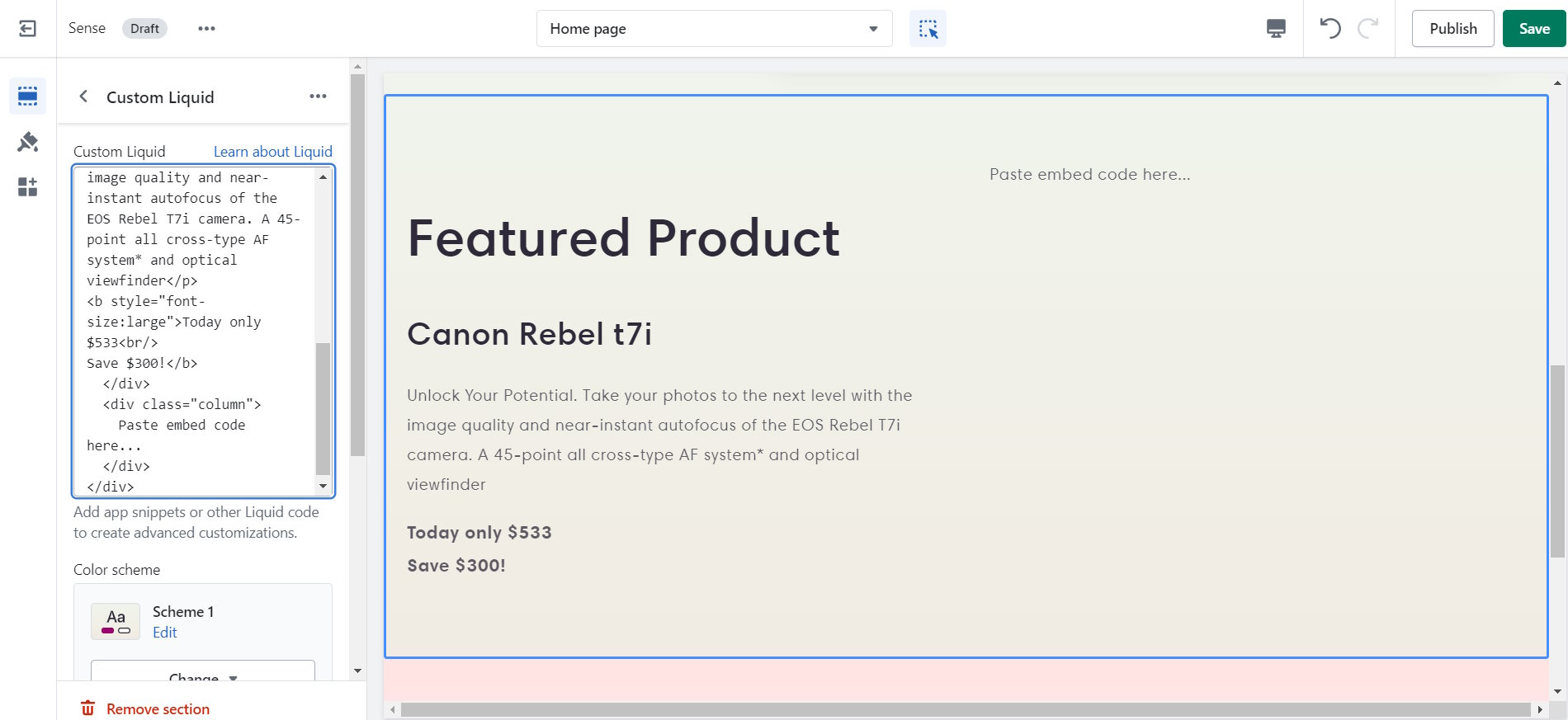
The next step is to display your uploaded model in the righthand column. Go to the embed viewer tab and paste in the direct download file URLs of the files you uploaded into the relevant text boxes. Click the copy button and paste the code into the right column, replacing the ' Paste embed code here...' text.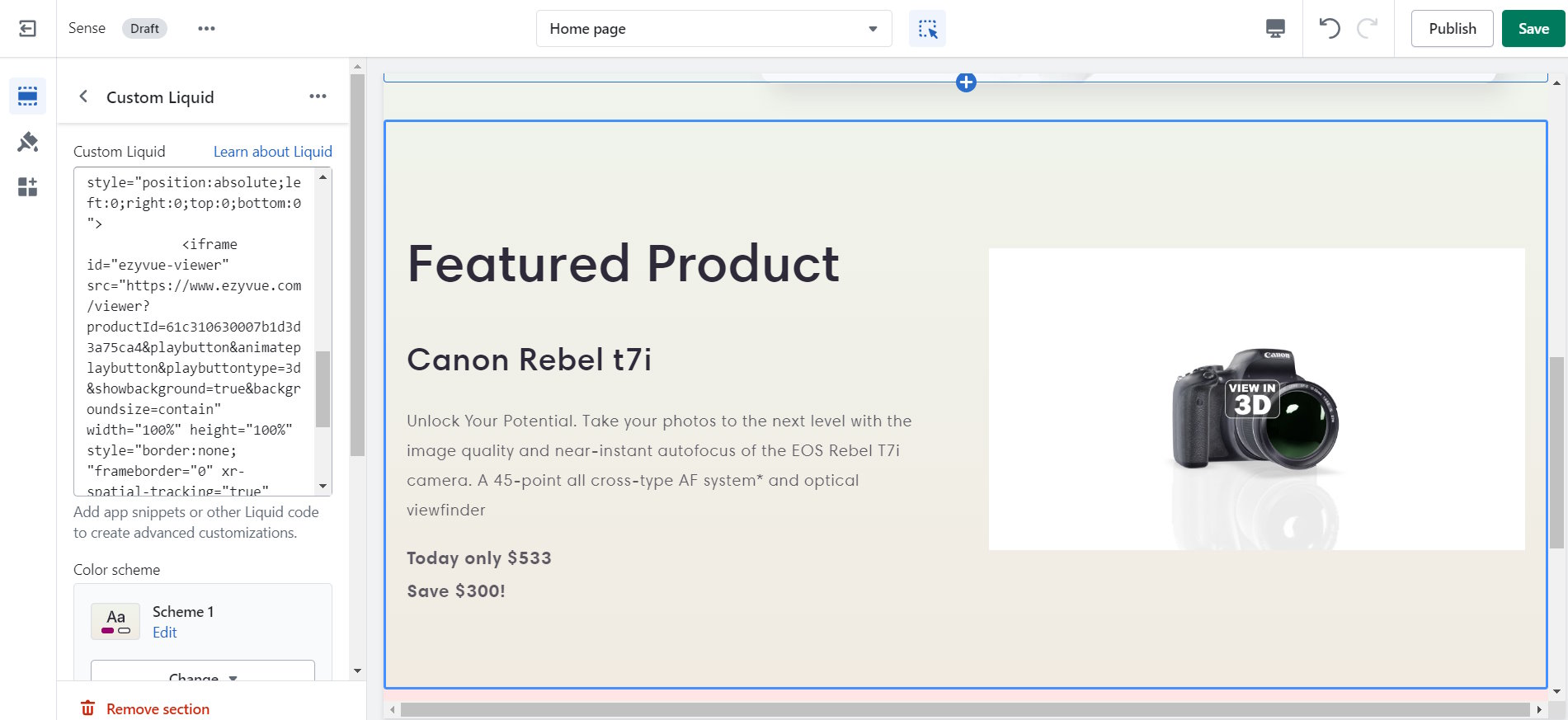 The viewer should load and display the project snapshot image.
Save the edits by clicking the Save button on the main menu bar and preview your site to admire your work.
The Ezyview 3D Editor
Using the 3D Editor you can customize the scene, change the background, add a reflection and shadows, change the lighting, add 3D text annotations, create product variants and much more.Related blogs
Enhancing your online store with a 3D viewerDisplay products in 3D and AR on your website